Punchlist templates
Written By Timothy Murenzi
If you run the same punchlist on many projects — a construction blue-tape walkthrough or an FF&E receiving checklist — save it once as a studio template and reuse it.
Save a punchlist as a template
Open a form in the builder and add a Punchlist field (Form fields → Special → Punchlist), or click an existing one.
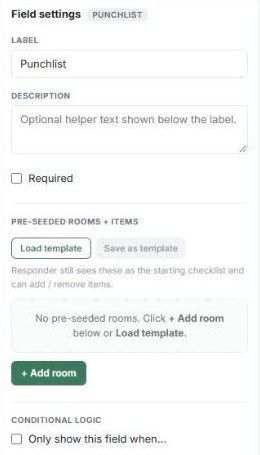
In Field settings → Pre-seeded rooms + items, click + Add room and set up the rooms and items exactly as you want to reuse them.
Click Save as template and give it a name.
Reuse a template
Add a new Punchlist field to any form.
Click Load template and pick the one you saved.
Templates are shared with your whole studio. Each form keeps its own copy, so editing a template later doesn't change forms that already loaded it.
Don't need your own? The Construction Blue-Tape Walkthrough and FF&E Final Delivery Walkthrough form templates come pre-seeded with hundreds of items (see Building from a template).
Note: if you click Load template before your studio has saved any punchlist templates, you'll see "No saved templates yet".
Was this helpful?
Still need help? Ask the team