Managing Product Sub-Items
Organize layered product relationships using sub-items within larger FF&E schedules.
Written By Julia M.
Overview
Sub-items sit under a parent product — COM fabric under a chair, artwork bundled with a console, hardware under a vanity. They're priced on their own but travel with the parent.
Nest a product
Drag: in Library's Traditional view, drag a row onto another to nest it.
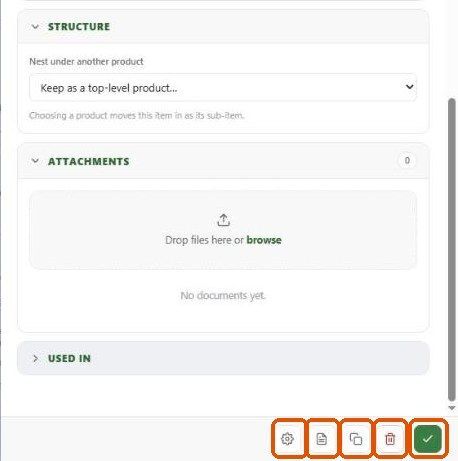
From the product: open it, expand Structure, and pick a parent under Nest under another product. Choose Keep as a top-level product to un-nest it.
A parent shows a chip with its sub-item count (for example › 1) and the client total notes + Sub Items.
Sub-items on documents
Estimates/invoices: sub-items appear under the line with a Hide / Show toggle. When hidden, the editor notes the sub-items total is hidden from the client.
Reports: Spec sheets have a Sub-items toggle; Schedules have Sub-items as rows under their product.
Best practices
Keep nesting to one level.
Check totals on estimates after nesting — review the line before sending.
Related articles
Generating Advanced PDF Spec Packages
Managing Product Financials
Was this helpful?
Still need help? Ask the team