How to set up the Harvest integration
Written By Timothy Murenzi
The Harvest integration brings timelogs from Harvest into Workroom. You map your Harvest projects and tasks once, then import on demand or every night.
Before you start
You need owner or admin access — the connection is account-wide.
You need a login for your Harvest account.
1. Connect
Go to Settings → Studio → Integrations and find the Harvest card.
Connect, sign in to Harvest, choose the account and click Authorize App.
The card shows Connected. Click Settings and sync to open the Harvest page.
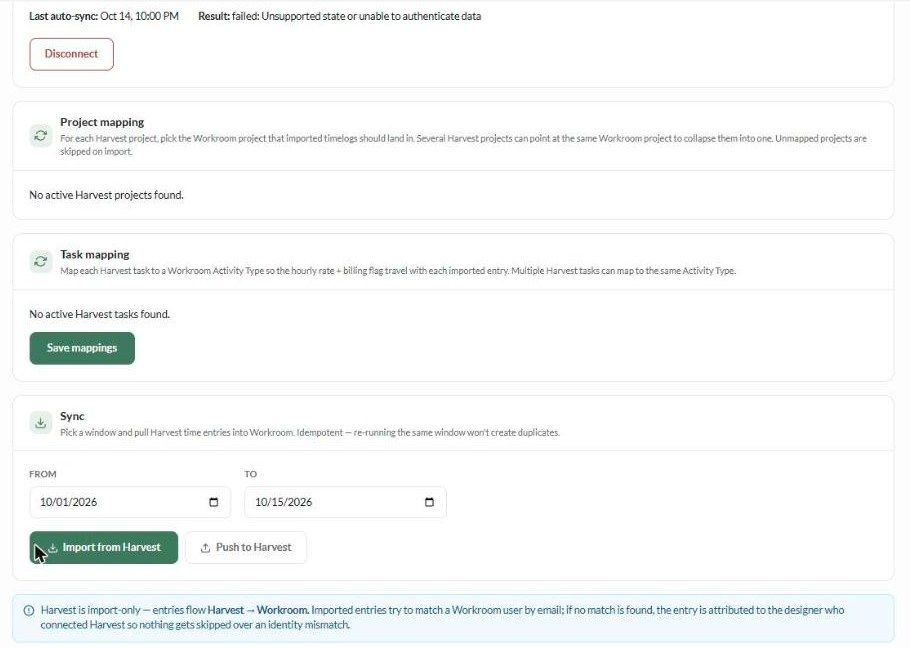
The Connection section shows the status, Harvest account, last refreshed and last import. No API key is needed.
2. Map projects
For each active Harvest project, pick the Workroom project its time should land in. Several Harvest projects can point to the same Workroom project. Unmapped projects are skipped on import.
3. Map tasks
Map each Harvest task to a Workroom service (activity type), so the hourly rate and billable flag carry over. Several Harvest tasks can map to the same service. Click Save mappings.
4. Import
In Sync, choose a From and To date.
Click Import from Harvest.
Check the result — how many entries were imported, and why any were skipped.
Imports are safe to repeat: running the same dates again won't create duplicates.
Nightly sync (optional)
Turn on Automated sync to pull the last 24 hours of Harvest entries every night at 2am UTC, using your saved mappings. The page shows Last auto-sync and its Result so you can check it's working.
How entries are matched
Each entry is matched to a Workroom user by email. If there's no match, it's assigned to the person who connected Harvest, so nothing is dropped.
Imported fields: project, service, date, hours and minutes, notes, and billable.
Expenses, invoices and clients are not imported — only time.
Skipped entries
Project not mapped / Task not mapped — add the mapping and import again.
Already imported — the duplicate guard. Safe to ignore.
Harvest API error — try again in a few minutes. If the nightly Result shows an authentication error, disconnect and reconnect Harvest.
Disconnect
Click Disconnect in the Connection section. Your mappings are cleared, but imported timelogs stay.
Was this helpful?
Still need help? Ask the team