Saved Views & default view
Written By Timothy Murenzi
Set a view up the way you like it, save it, and return to it in one click.
Save a view
Pick a view (List, Board or Timeline) and set your filters (e.g. My tasks, Overdue).
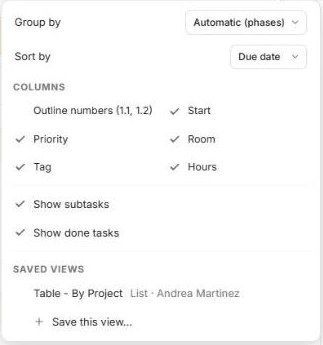
Open View options and set grouping, sorting, columns, and whether to show subtasks and done tasks.
Under Saved views, click + Save this view… and name it.
Use a saved view
Open View options and click the view under Saved views. Each one shows its type and who created it (e.g. Table - By Project · List · Andrea Martinez).
My week
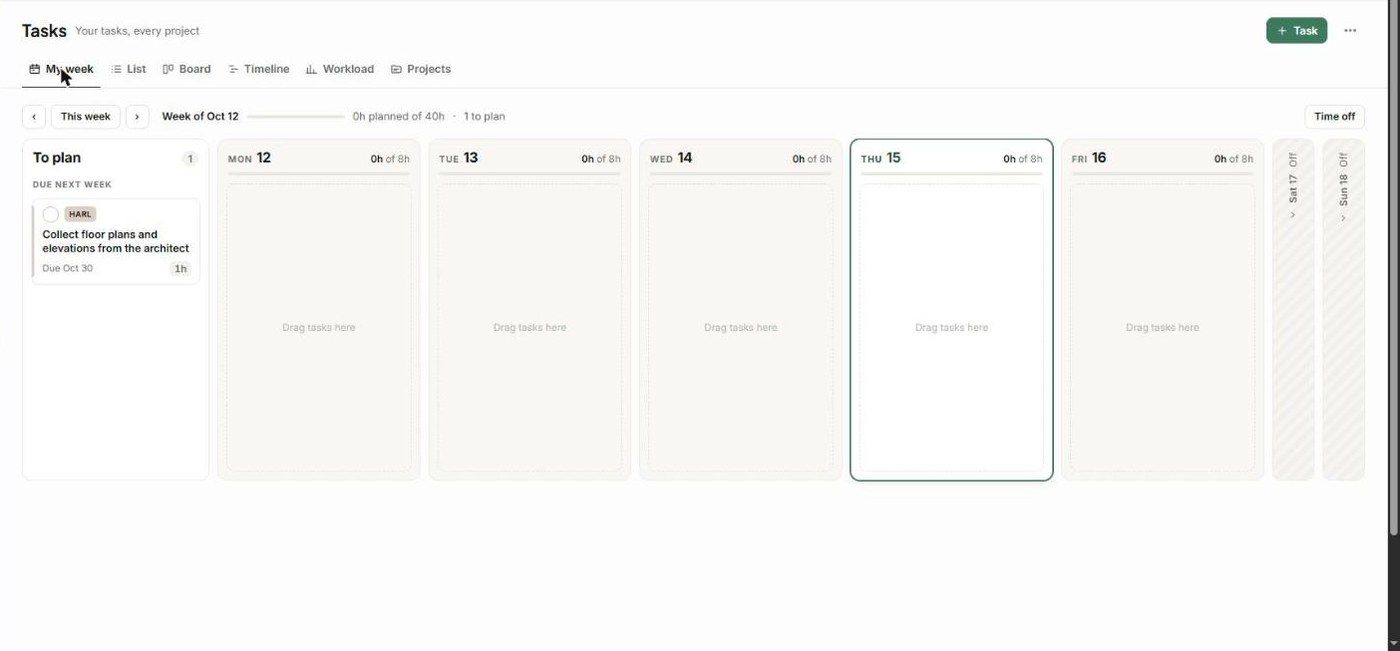
For a personal plan, use My week. It shows To plan (tasks due soon), a column per weekday with planned hours against capacity (e.g. 0h of 8h), and your days off. Drag tasks onto a day to plan them, and use Time off to add leave.
Related articles
The Table view (List)
Was this helpful?
Still need help? Ask the team