Contracts

Designer Cheat Sheet — Contracts in 60 Seconds

Written By Timothy Murenzi

Everything you need to send a contract, on one page.

The flow in 6 steps

  1. Contracts → + New contract, then choose Build from scratch, a saved template, or Upload PDF.

  2. Name it and optionally pick a client and project. Click Create contract.

  3. Add sections (+ Add component), or click Draft with AI to have Walter write it.

  4. Click Signers: add people, pick Sequential or Parallel, then click Done.

  5. Drag a Signature field onto the page for each signer and assign it.

  6. Optionally click Retainer, then Send for signature.
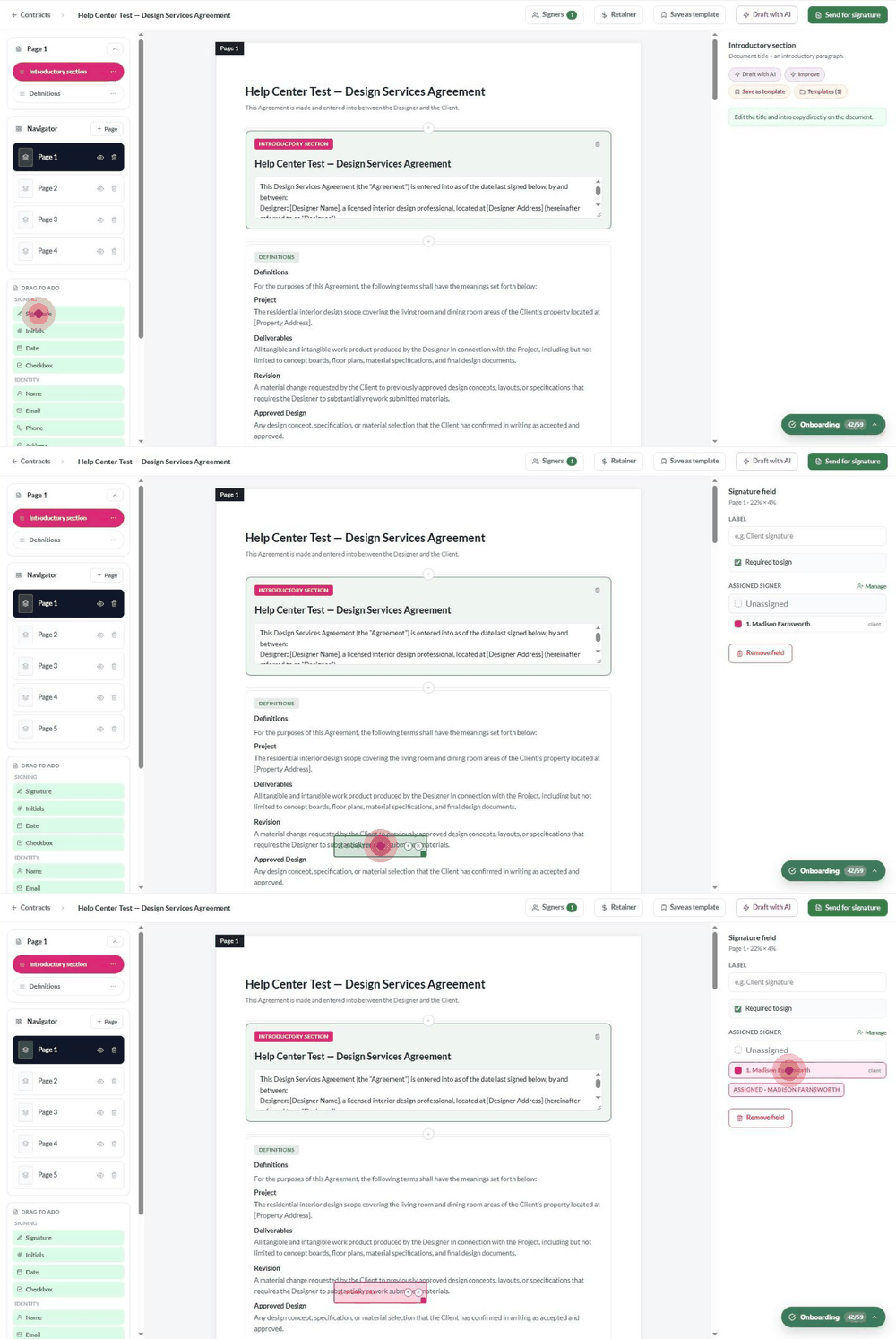
Placing a signature field and assigning it to a signer

Quick reference

I want to…

Do this

Reuse last month's contract

Click Save as template in the editor. It appears under New contract.

Reuse one clause

Select the section, then right rail → Save as template. Insert it later with Templates.

Get a first draft fast

Draft with AI → describe the job → Apply.

Use my lawyer's PDF

New contract → Upload PDF, then drag fields onto it.

Send to someone not in Workroom

Leave Client empty. Turn on Auto-create the client in Settings → Studio → Contracts.

Collect a deposit

Retainer → choose currency and amount → Save.

Make people sign in order

Signers → Sequential.

Fix a wrong signer email

⋮ → Manage recipients → edit → Save changes.

Re-send an invite

⋮ → Manage recipients → Resend invite.

Let someone sign again

⋮ → Manage recipients → Revert signature.

Get the signed copy

⋮ → Download signed PDF (Completed contracts).

Change the look of new contracts

Settings → Studio → Contracts → Document defaults.

Before you click Send

  • Every signer has the right name, email and role.

  • Every signer has at least one Signature field assigned.

  • Walter's placeholders (like [Property Address]) are filled in.

  • The retainer amount and currency are correct, or not set.

  • The signing order is the one you want.

After sending, the contract can't be edited.

Statuses at a glance

Status

What to do

Draft

Finish it and send.

Sent / Viewing

Wait, or resend the invite.

Partially signed

The remaining signers have links. In sequential mode, the next signer was emailed automatically.

Completed

Download the signed PDF.

Declined / Expired / Canceled

Create and send a new contract.