How to import contacts and vendors
How to import contacts and vendors into Indema using a CSV file.
Written By Julia M.
Already have a client or vendor list? Import it from a spreadsheet instead of adding records one by one.
Before you start
Import contacts and vendors separately — they use different templates.
Contacts need Full name and Email. Vendors need Vendor name and Email.
Step by step
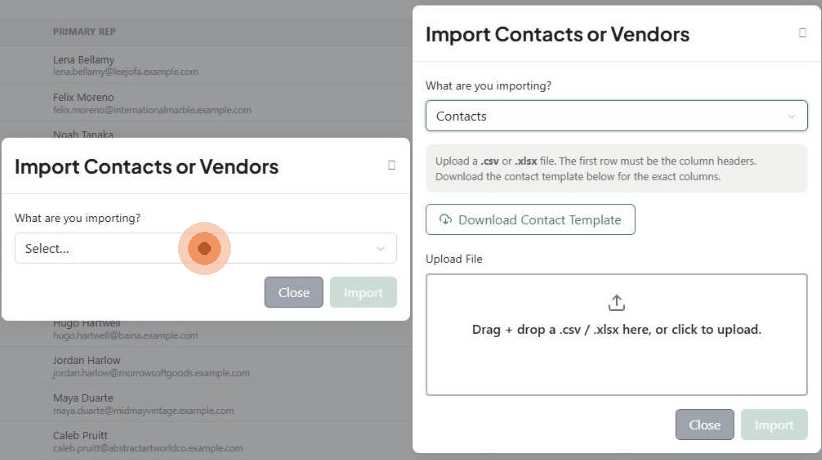
Go to Contacts and click Import (top right).
Under What are you importing?, choose Contacts or Vendors.
Click Download Contact Template (or the vendor template).
Fill in the template. The first row must be the column headers — don't add, remove or rename columns.
Save it as .csv or .xlsx.
Drag the file into Upload File, or click to choose it.
Click Import.
What happens next?
Valid rows are added. Rows with problems — a missing required field or an invalid email — are skipped.
Check the list afterwards and fill in any missing details on individual records.
Important limitations
Importing doesn't send portal invites. Invite clients from their profile or from Settings → Studio → Client experience.
Prefer to hand it off? Workroom offers a done-for-you CSV import of contacts, vendors and products. See Current pricing.
Related articles
How to add a contact
How to add a vendor
Was this helpful?
Still need help? Ask the team