Forms module — overview
Written By Timothy Murenzi
Forms is a drag-and-drop form builder for collecting information from clients, prospects and contractors — website inquiries, intake questionnaires, on-site measurements, punchlists and more. Responses land in Workroom, where you can turn them into projects or estimates in a click.
Where to find it
Click Forms in the left sidebar under Content. If you don't see it, Forms isn't enabled for your workspace or your permission set doesn't include View forms list — see Form permissions.
The Forms list
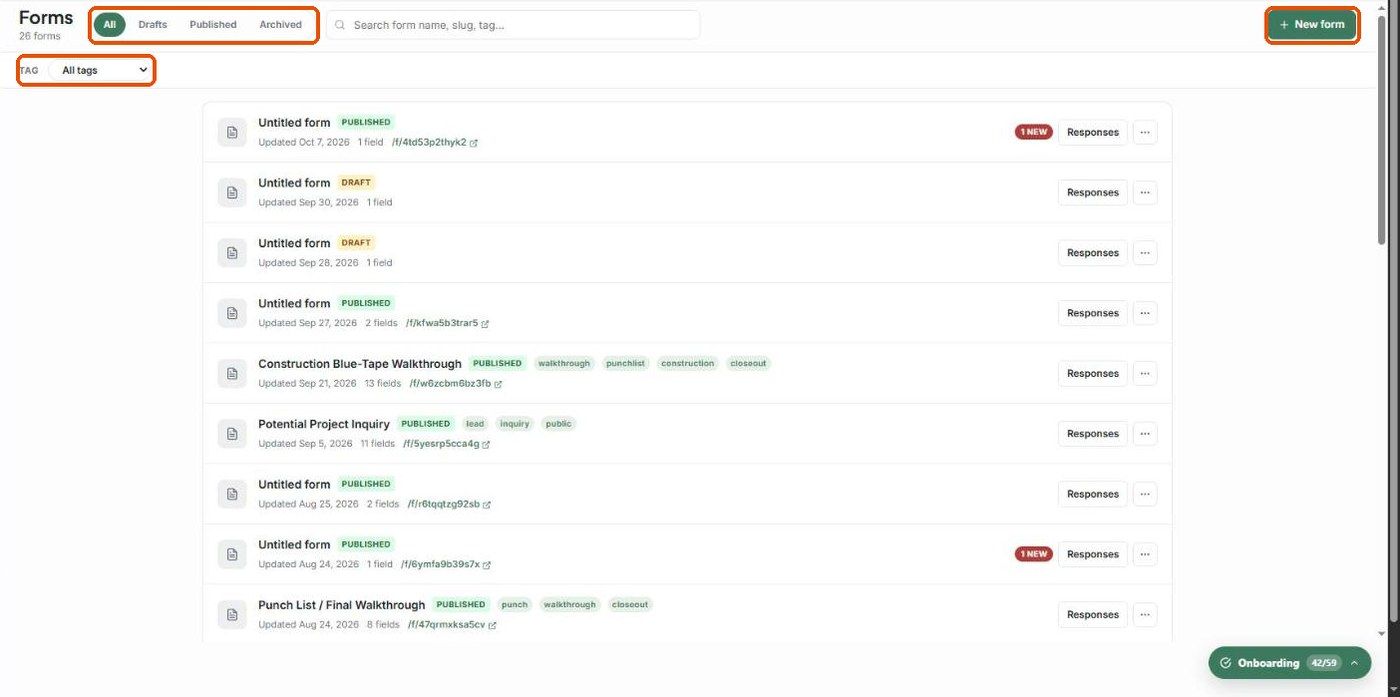
All / Drafts / Published / Archived — filter by status. The count under the title shows how many forms match.
Search — find a form by name, URL slug or tag.
Tag — show only forms with a particular tag (e.g. intake, punchlist).
Each row shows the form name, status (DRAFT or PUBLISHED), tags, when it was last updated, how many fields it has and — once published — its public link (/f/…). A red NEW badge counts unread responses.
Responses opens that form's submissions; the ⋯ menu has Duplicate, Edit and Archive.
+ New form starts a blank form or one from a template.
A form's life cycle
Draft — you're building it. Nobody outside your studio can see it.
Published — it has a public link and an embed code. Anyone with the link can submit.
Archived — hidden from the main list. Existing responses are kept.
Common uses
A project inquiry form on your website.
Client intake and style/lifestyle questionnaires.
Site analysis, room measurements and photo collection.
Blue-tape and FF&E install punchlists with sign-off.
Post-project satisfaction surveys.
Was this helpful?
Still need help? Ask the team