Saved Templates & Walter (AI)
Written By Timothy Murenzi
Two tools save the most time in Contracts. Saved templates let you reuse a contract or a single section. Walter, Workroom's AI assistant, writes a whole contract or one section for you.
Saved templates
Save a whole contract
Open the contract in the editor.
Click Save as template in the header and give it a name.
The template is shared with the whole studio. It appears as a SAVED option, with its section count, the next time anyone clicks New contract.
Save a single section
Select the section (for example your standard Payment terms).
In the right rail, click Save as template.
To use it later, select a section and click Templates in the right rail. The number shows how many section templates you have, for example Templates (1).
Manage templates
Go to Settings → Studio → Contracts and open the Contract templates and Section templates tabs. Team members need the Manage contract templates permission.
A template is a snapshot. Editing a contract later doesn't update the template made from it. Save a new template to capture the changes.
Walter: draft the whole contract
In the editor, click Draft with AI in the header.
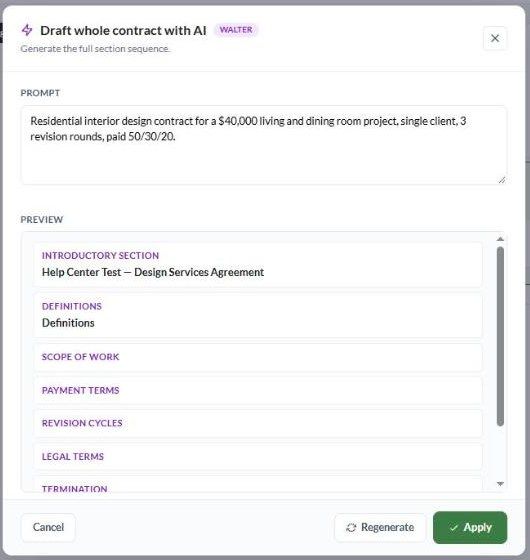
In Draft whole contract with AI, describe the engagement. For example: "Residential interior design contract for a $40,000 living and dining room project, single client, 3 revision rounds, paid 50/30/20."
Click Draft contract. Walter takes about a minute (Walter is drafting…).
Review the Preview, which lists every section Walter wrote: Introductory section, Definitions, Scope of work, Payment terms, Revision cycles, Legal terms, Termination, Signatures and so on.
Click Apply to put it into the contract, or Regenerate to try again.
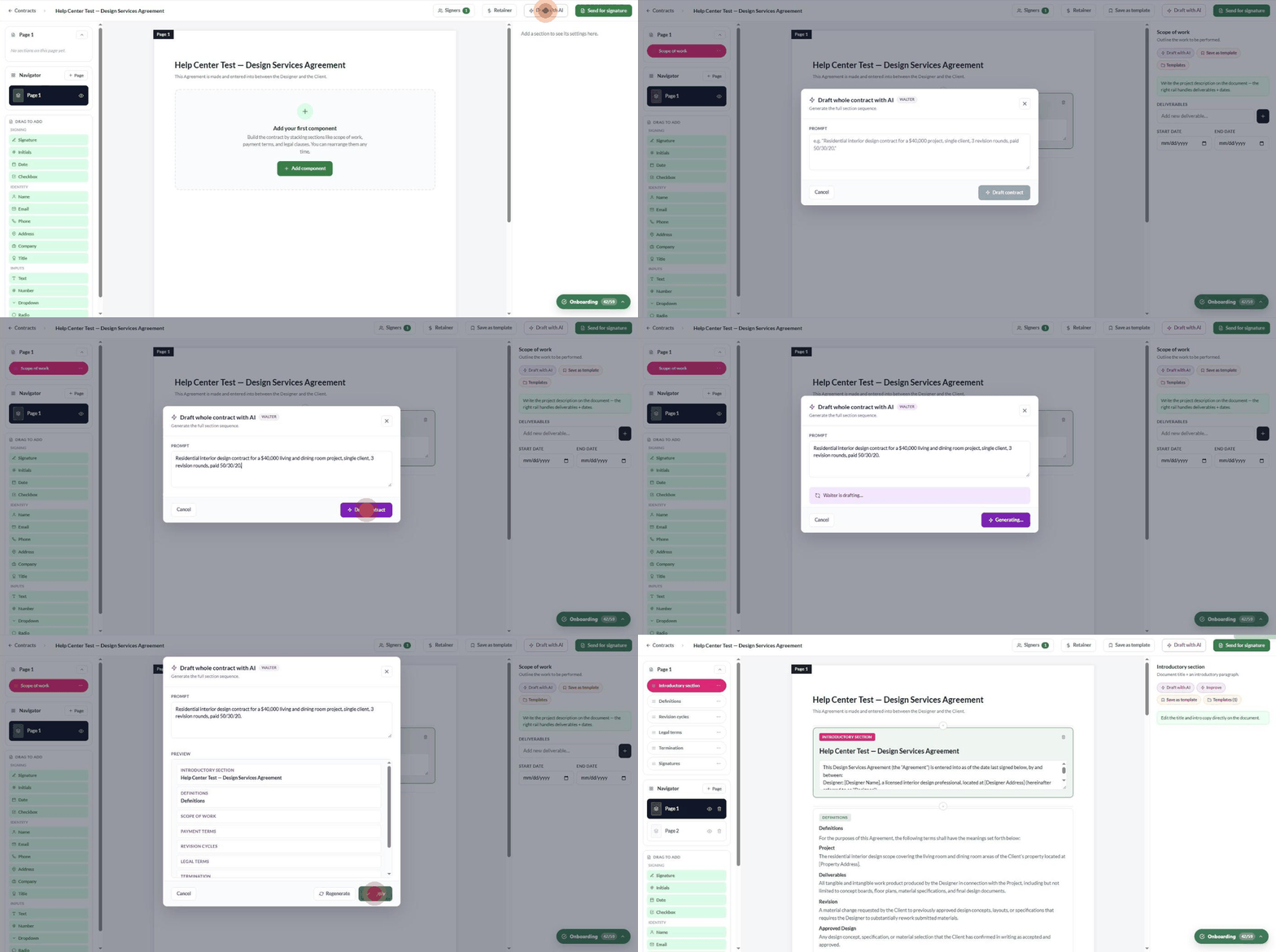
Applying replaces the contract's current sections and spreads them across as many pages as needed.
Always review Walter's draft. Walter leaves placeholders such as [Designer Name] and [Property Address] for you to fill in. Walter isn't a lawyer — have important agreements checked by a professional.
Walter: one section at a time
Select a section, then use the buttons in the right rail:
Draft with AI — write this section from a short description.
Improve — rewrite the existing text, for example to tighten it or make it more formal.
Tips
Put the fee, payment schedule, number of revisions and project type in your prompt. Walter uses exactly what you give it.
Link a client and project before drafting so names and the project can be filled in.
Once a Walter draft reads the way you like, Save as template so you don't need to draft it again.
Troubleshooting
Walter is taking a long time. A whole contract can take up to a minute. If it fails, click Draft contract again.
The draft is too generic. Add specifics to the prompt (scope, fee, schedule, location) and click Regenerate.
Was this helpful?
Still need help? Ask the team