Notification Center
How to use the notification center in Indema to stay on top of tags and activity across your workspace.
Written By Julia M.
The Notification Center collects everything that needs your attention in Workroom: approvals, contract activity, chat messages, @mentions and task reminders. It sits at the top right of every page.

Open your notifications
Click the bell icon in the top header, just left of your avatar. The badge shows how many are unread (for example 9+).
The panel shows your newest notifications first. An unread one has a green dot.
Click a notification to go straight to the record — the approval, contract, chat or task.
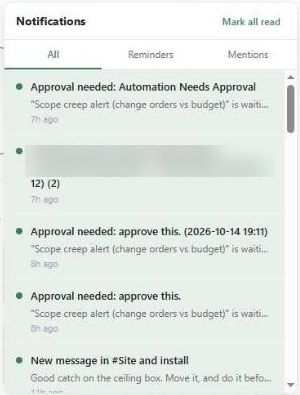
The three tabs
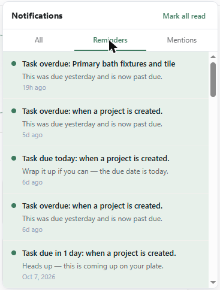
Click Mark all read to clear the unread dots.
Tag a teammate
Type @ followed by a name in a note, task or Comms message. They're notified straight away (depending on their notification settings).
Choose what you're notified about
Go to Settings → You → Notifications. Each event can go to three channels:
Center — the bell panel.
In-app — a pop-up while you're working.
Email
The switch under a channel's heading turns that channel off for every event. The switches on each row control individual events.
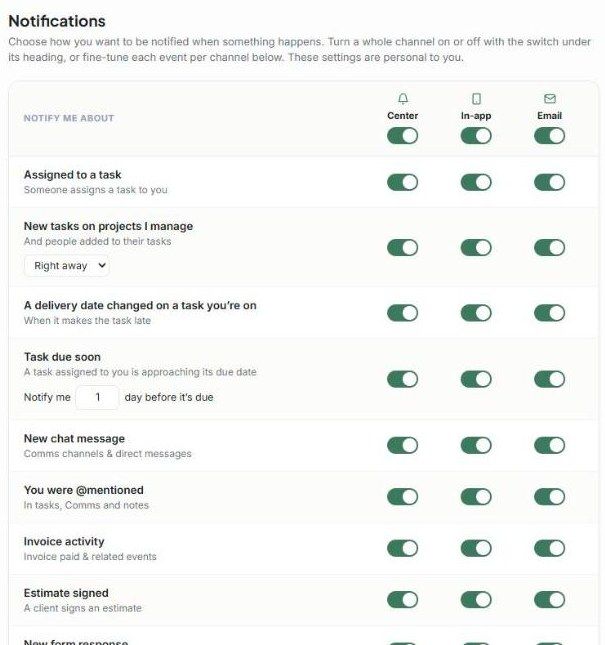
Events you can control:
Assigned to a task
New tasks on projects I manage — Right away, Once a day or Off
A delivery date changed on a task you're on
Task due soon — choose how many days before
New chat message
You were @mentioned
Invoice activity
Estimate signed
New form response
Contract activity — signed, or the email opened
New lead
Timelog needs approval
Change order needs approval
Purchase order activity
Expense activity
These settings are personal — they don't affect your teammates.
Troubleshooting
I'm not getting a notification I expect. Check that event's row and the channel's main switch in Settings → You → Notifications.
Too many emails. Turn off the Email column for noisy events, or set New tasks on projects I manage to Once a day.
Was this helpful?
Still need help? Ask the team