Comms Tips + Tricks
Written By Timothy Murenzi
Small habits that make Comms work better for you and your clients.
Before you type
Look for the dot. A dot after a room name, and the Client facing · … pill in the header, mean the client reads that room.
Use Client view before a big send. One click shows the room exactly as the client sees it. Nothing you do in the preview is saved.
Give rooms two names. Use ⋯ → Rename for the client… so your shorthand stays internal.
Let Walter tidy a message. The lightning button in the composer (Rewrite with Walter) rewrites your draft.
Working the queue
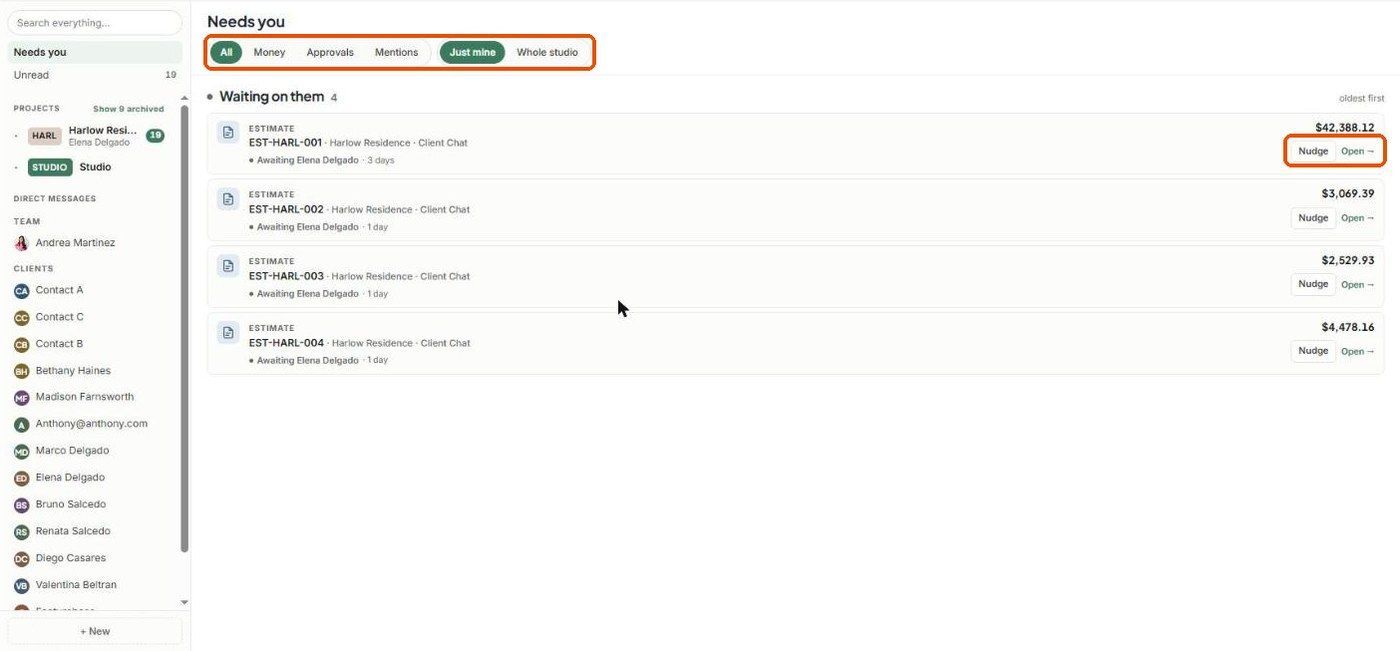
Start your day in Needs you. Waiting on them is sorted oldest first, so the top row is the one to chase.
Use Money and Approvals when you only have time for one kind of follow-up.
Owners: if Just mine is empty, switch to Whole studio.
Open records beside the thread. Open → shows the record without losing your place.
Keeping things tidy
Don't over-split. Every project already has a client chat and a team chat. Add a room only when it really is a separate conversation.
Put rooms away instead of deleting them. ⋯ → Put room away keeps the history. Delete room is permanent.
@mention people instead of hoping they'll read it. Only room members are offered, so it doubles as a check that they're in the room.
Pin to welcome. Hover over a message you've already written and click Pin to welcome to make it the first thing the client reads in their portal.
One-time setup that pays off
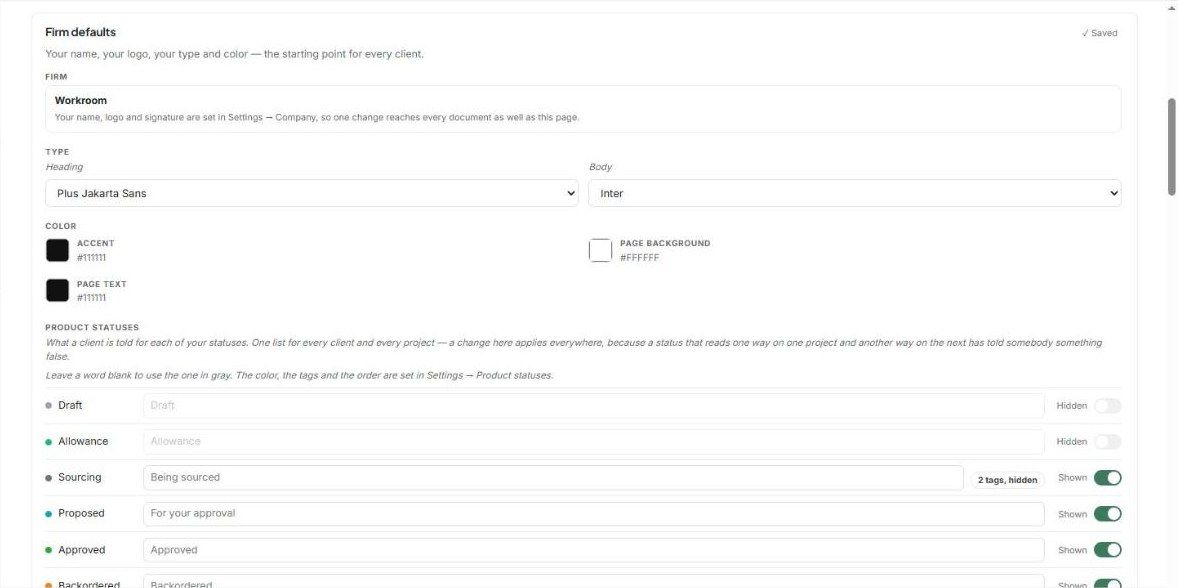
Rename your product statuses for clients. In Settings → Studio → Client experience → Firm defaults → Product statuses, tell clients "At the warehouse" instead of "Received", and "For your approval" instead of "Proposed". It's one list for every client.
Hide statuses that are only for you. Draft, Allowance and Return are hidden by default — keep them that way.
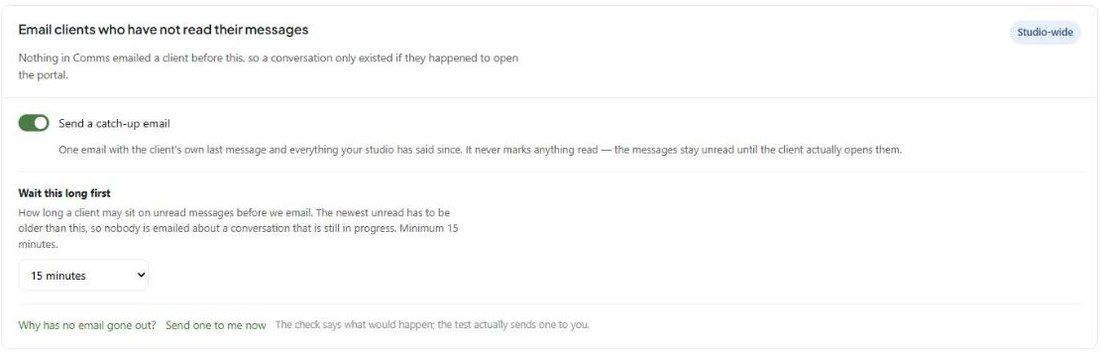
Turn on catch-up emails. Under Email clients who have not read their messages, turn on Send a catch-up email and choose how long to wait (minimum 15 minutes). Use Why has no email gone out? to check it, or Send one to me now to test it.
Hide sections you don't use on a project's Client portal tab. An empty tab teaches clients not to look.
Was this helpful?
Still need help? Ask the team