Payment schedule, fees and terms on an invoice
Set up the payment schedule, discounts, freight, tax, late fees, the card fee, memos and terms on an invoice.
Written By Julia M.
Overview
Below the items, every invoice has its payment schedule, additional fees, an internal memo, attachments and terms.
Watch it: the Finances lesson in Campus, step 4, “Invoice and get paid”, chapter 2, “The payment schedule” (starts at 0:24) and chapter 6, “Late fees” (starts at 2:26).
Payment schedule
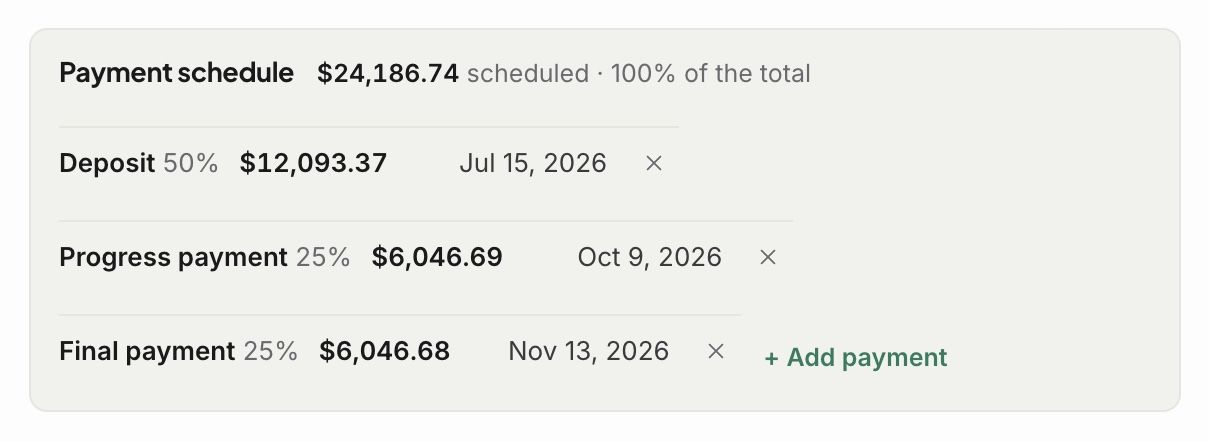
Split what is due into payments, like a deposit, a progress payment and a final payment, by percent or amount. Click + Add payment for another row. The schedule always adds up to what is due, and your client sees what is due next and when.
Additional fees
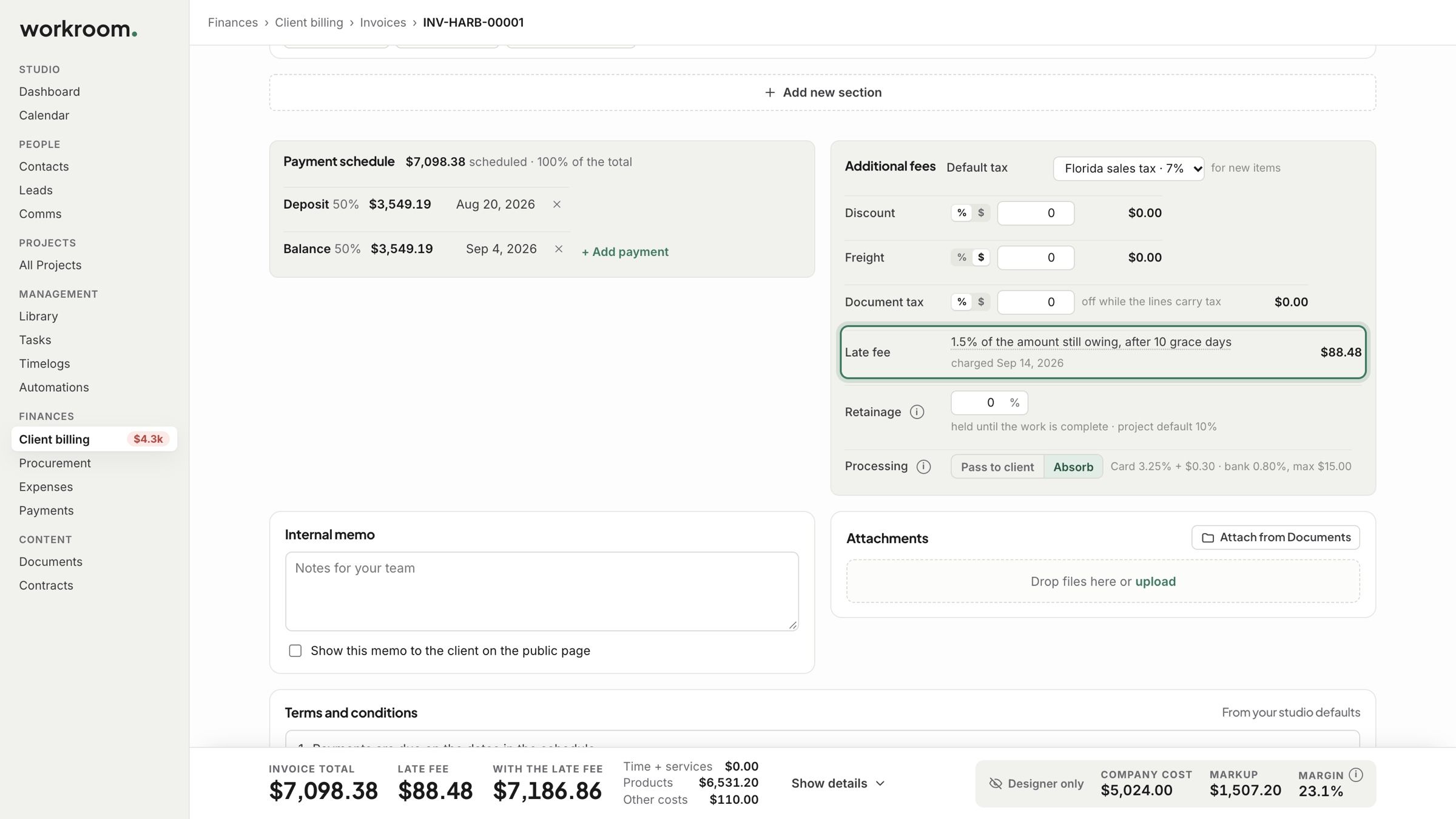
Default tax: the tax new items start with.
Discount, Freight and Document tax: on the whole invoice, as a percent or an amount. Document tax stays off while the lines carry their own tax.
Late fee: comes from your studio’s settings.
Retainage: for design-build work, held until the work is complete.
Processing: Pass to client or Absorb the card fee. Card 3.25% + $0.30, bank 0.80% up to $15.

Late fees
Set them up in Settings › Studio › Finances › Getting paid: turn on Charge a late fee on overdue invoices, then choose a percent or a flat amount, what the percent is of, and the grace period.
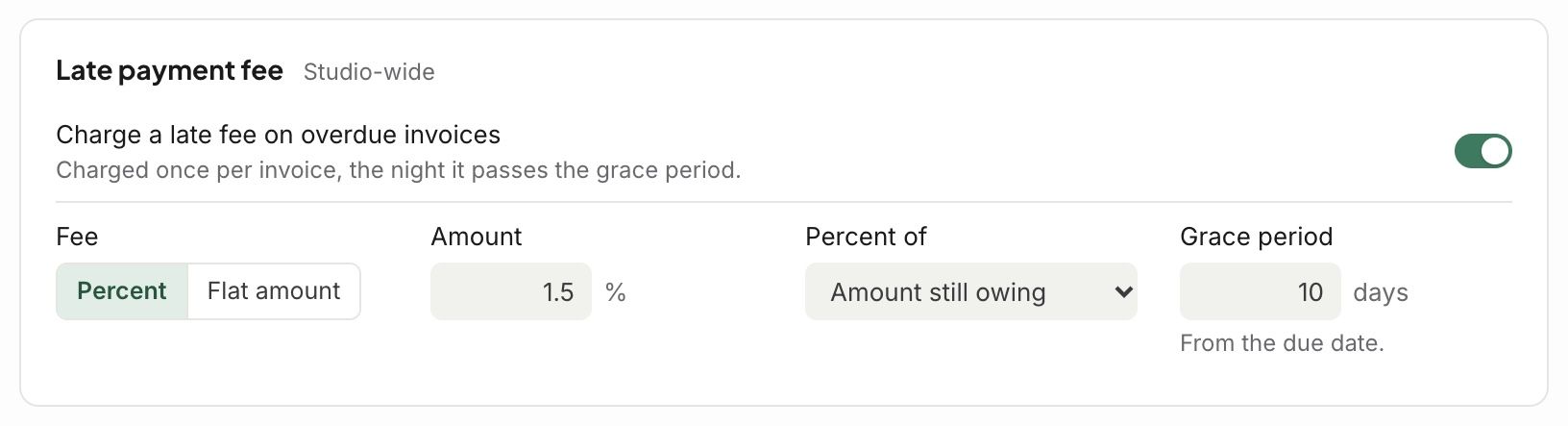
A late fee is added once, automatically, when an invoice is still unpaid after its due date plus the grace days. It shows on the invoice as its own line.
Memo, attachments and terms
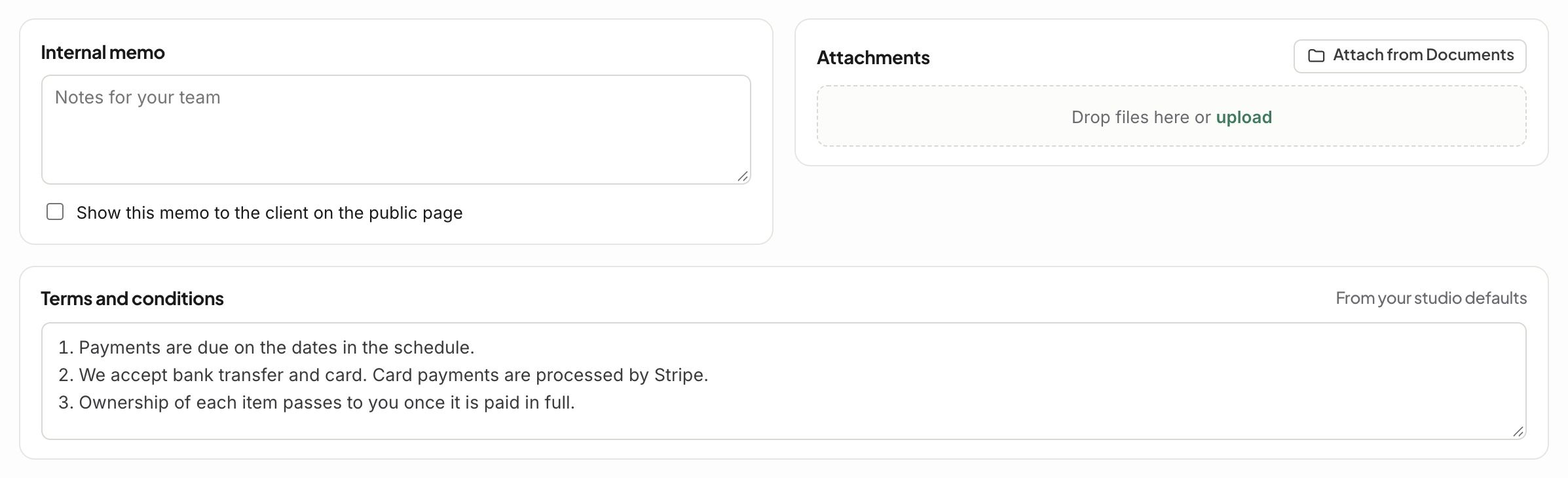
Internal memo: for your team. Tick Show this memo to the client on the public page only if you want your client to see it.
Attachments: drop in files, or Attach from Documents.
Terms and conditions: start from your studio defaults, and can be changed on each invoice.
Good to know
Default memos and terms for each document type are in Settings › Studio › Finances › Documents.
Related articles
Was this helpful?
Still need help? Ask the team