How to Set Up Fees, Payment Schedules, and Terms on an Invoice
Learn how to configure taxes, freight, discounts, payment schedules, terms and conditions, and internal invoice notes.
Written By Julia M.
Overview
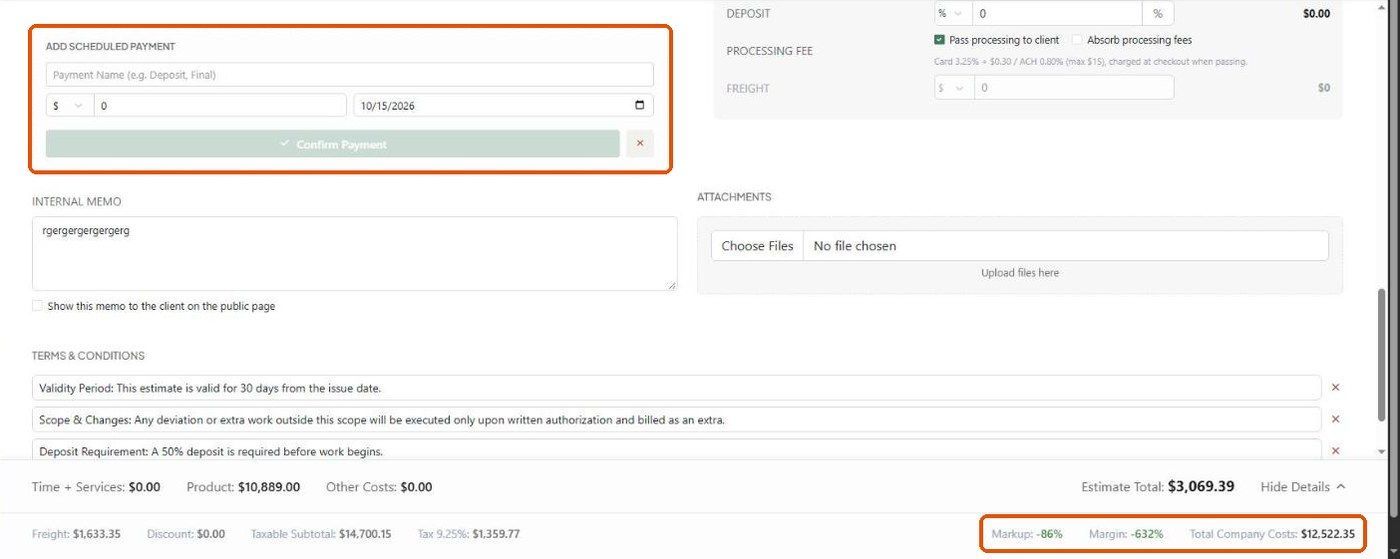
Invoices use the same layout as estimates: per-line fees on each line, then Payment Schedule, Additional Fees, Internal memo, Attachments and Terms & Conditions below.
Per-line fees
Each line has Qty, Unit type, Unit price, Disc (% or $), Mkup (%), Freight ($), Tax (%) and Deposit (% or $).
Additional fees
Tax (%), Discount and Deposit (% or $), Freight ($ or %).
Processing fee: Pass processing to client or Absorb processing fees.
Payment schedule
Under Payment Schedule, fill in Add Scheduled Payment: a name, $ or % amount, and a date.
Click Add Payment (or Confirm Payment).
Repeat until Balance Due shows nothing left to schedule.
When you record a payment, the Apply to field lets you apply it to the invoice or to a scheduled installment.
Terms, memo and attachments
Terms & Conditions: one per line, + Add Term. Defaults come from Settings → Studio → Money → Numbering and wording (Document type: Invoices).
Internal memo stays internal unless you tick Show this memo to the client on the public page.
Attachments: Choose Files.
Late fees
Late fees are set studio-wide, not per invoice: Settings → Studio → Money → Rates and accounts → Late payment fee (percentage or flat, grace days, and what the percentage is of). A nightly job adds the fee once to overdue invoices with a balance.
Important limitations
Once an invoice is paid, quantities, prices, discounts and taxes are locked.
Check the PDF export toggles for Internal Memo before sharing a PDF.
Related articles
How to Configure the Invoice Client View and Display Settings
How to Record a Payment on an Invoice
Was this helpful?
Still need help? Ask the team