How to Configure the Invoice Client View and Display Settings
Control what your clients see on an invoice, including pricing fields, specifications, and visibility toggles.
Written By Julia M.
Overview
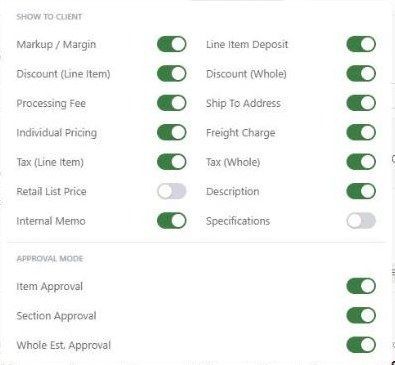
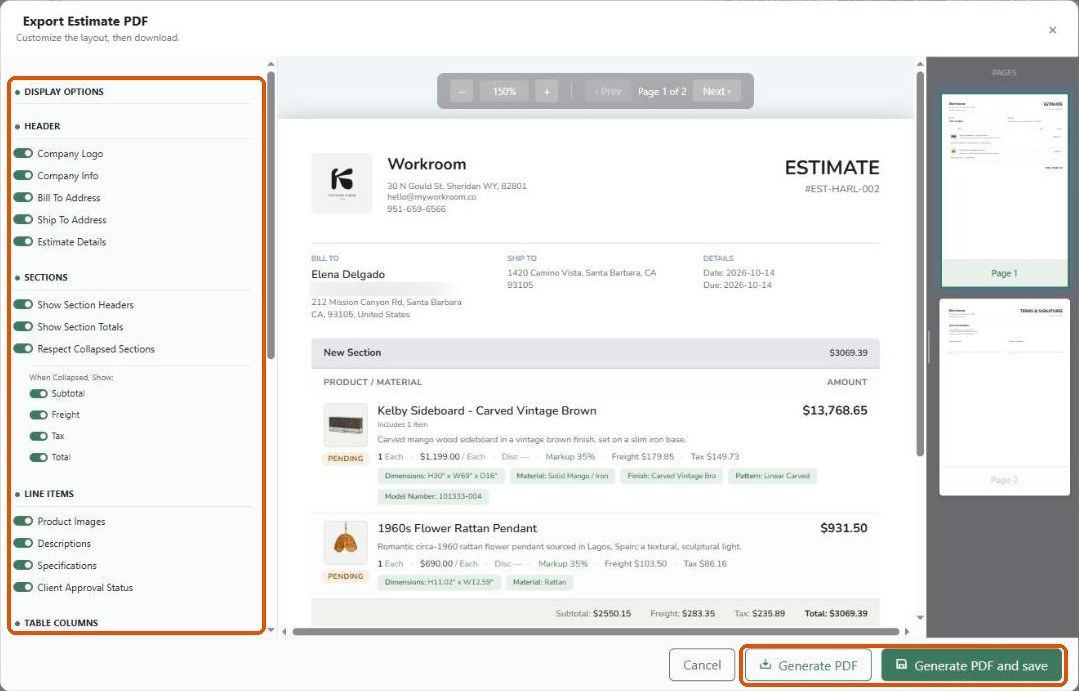
Two sets of settings control what a client sees on an invoice: Client View in the editor (the online invoice) and the PDF export panel (the downloaded file).
Online view
Open the invoice in the editor and click Client View.
Turn on or off: Markup / Margin, Discount (line and whole), Processing Fee, Individual Pricing, Tax (line and whole), Retail List Price, Internal Memo, Line Item Deposit, Ship To Address, Freight Charge, Description, Specifications.
Save, then preview with the eye icon.
Hover the row → share icon → Download PDF.
Set the Header, Sections, Line items, Table columns, Footer totals and Payment & Notes toggles.
Check every page in the preview, then click Generate PDF or Generate PDF and save.
Important limitations
PDF toggles apply to that export only.
Internal Memo and Markup can appear on the PDF if their toggles are on — check before sharing.
Changing visibility never changes the invoice's figures.
Related articles
How to customize and download the estimate PDF
Creating custom headers
Was this helpful?
Still need help? Ask the team