How to Use the Invoice Quick View Panel
Navigate the Invoice, Activity, Notes, and Payments tabs in the quick view panel.
Written By Timothy Murenzi
Overview
Click an invoice number to open the quick view panel on the right without leaving the list.
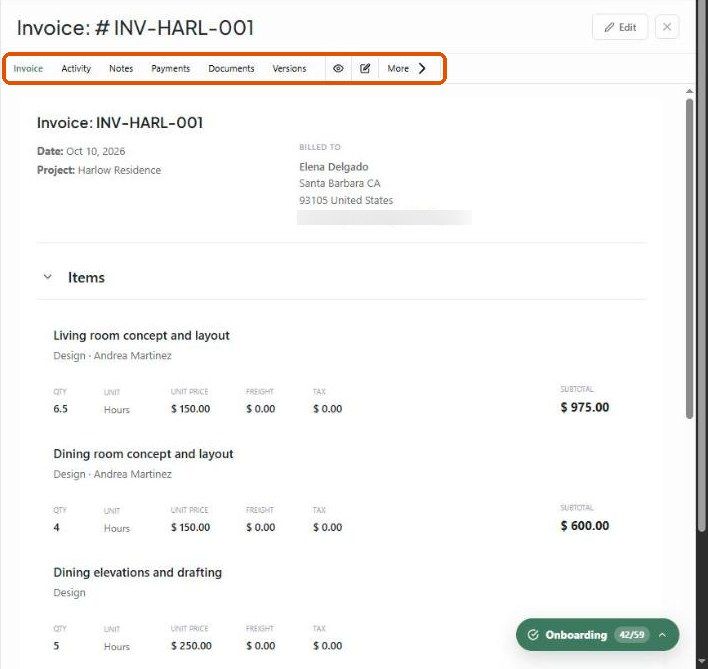
Tabs
Invoice — number, dates, project, billed-to, items, totals, Paid and Balance Due, plus an internal Cost Analysis.
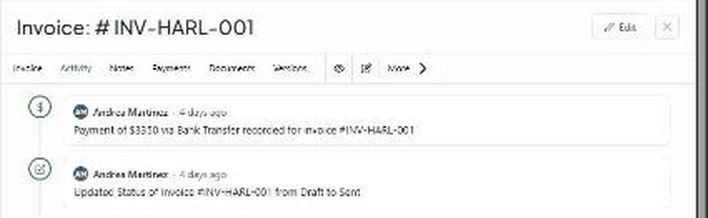
Activity — a timestamped history: status changes, payments, sends and edits. It can't be edited.
Notes — internal notes, never shown to the client.
Payments — totals, the list of recorded payments with edit/delete, and Record payment.
Documents — attached files.
Versions — snapshots of earlier saves to compare and revert.
Controls
Eye — open the client view.
Pencil or Edit — open the editor.
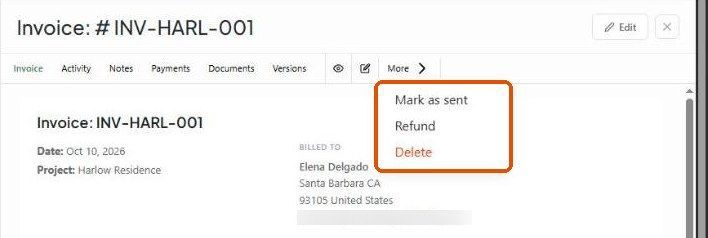
More — Mark as sent, Refund, Delete.
✕ — close the panel.
Related articles
How to Record a Payment on an Invoice
How to Issue a Refund on an Invoice
Overview of Invoices
Was this helpful?
Still need help? Ask the team