How to set up fees, payment schedule, and terms on an estimate
How to add fees, configure a payment schedule, attach files, and set terms and conditions on an estimate.
Written By Julia M.
Overview
Below the line items, every estimate has a Payment Schedule, Fees, Internal memo, Attachments and Terms & Conditions. Per-line fees sit on each line.
Per-line fees
Each product or service line has: Qty, Unit type, Unit price, Disc (% or $), Mkup (%), Freight ($), Tax (%), Deposit (% or $) and the line Subtotal. New lines start with the studio defaults from Settings → Studio → Money → Rates and accounts (FF+E markup, tax on goods, tax on services).
Whole-estimate fees
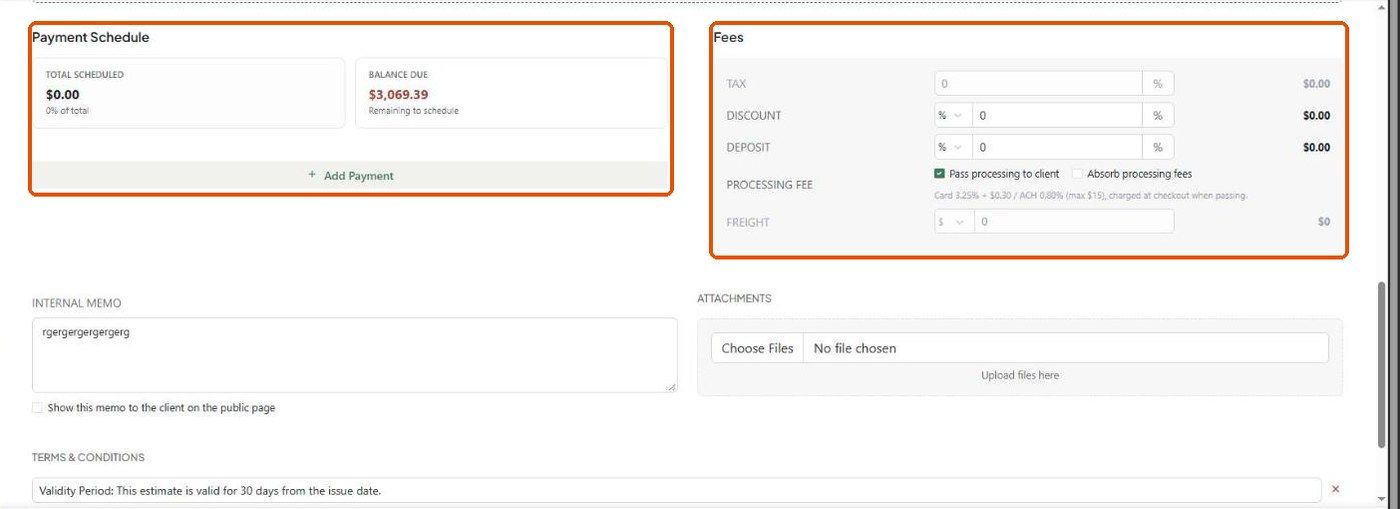
Tax — a percentage.
Discount and Deposit — switch between % and $.
Processing fee — Pass processing to client or Absorb processing fees (card 3.25% + $0.30, ACH 0.80% capped at $15).
Freight — $ or %.
Payment schedule
Click Add Payment.
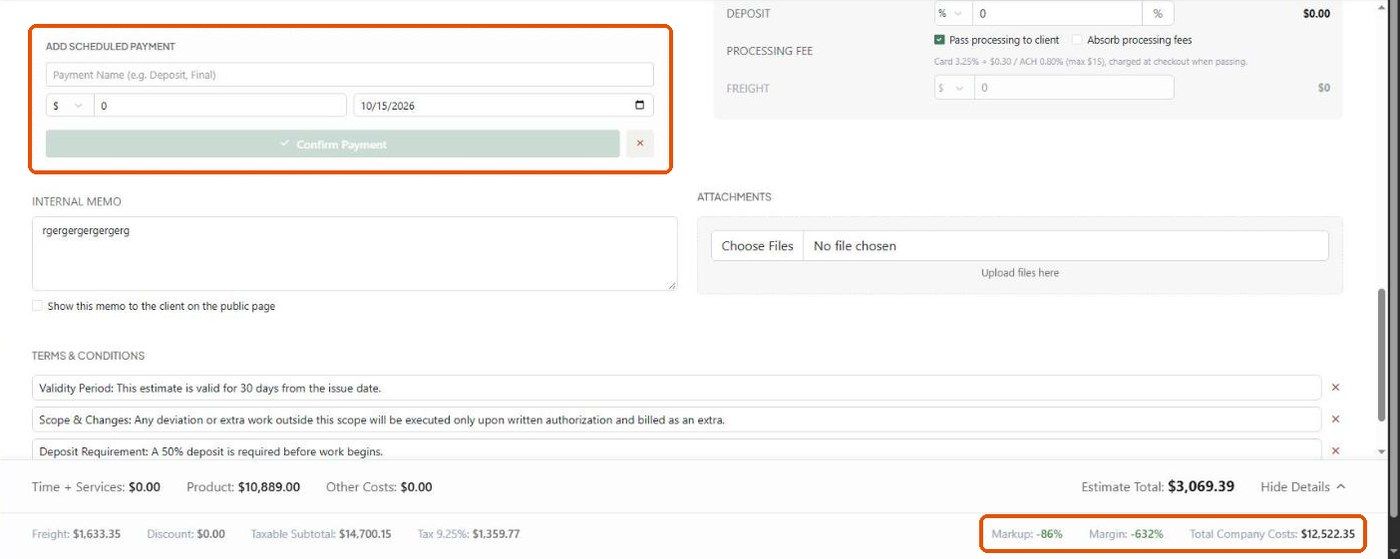
Enter a Payment Name (e.g. Deposit, Final), choose $ or %, enter the amount and pick a date.
Click Confirm Payment. Repeat until Balance Due shows nothing left to schedule.
Internal memo, attachments and terms
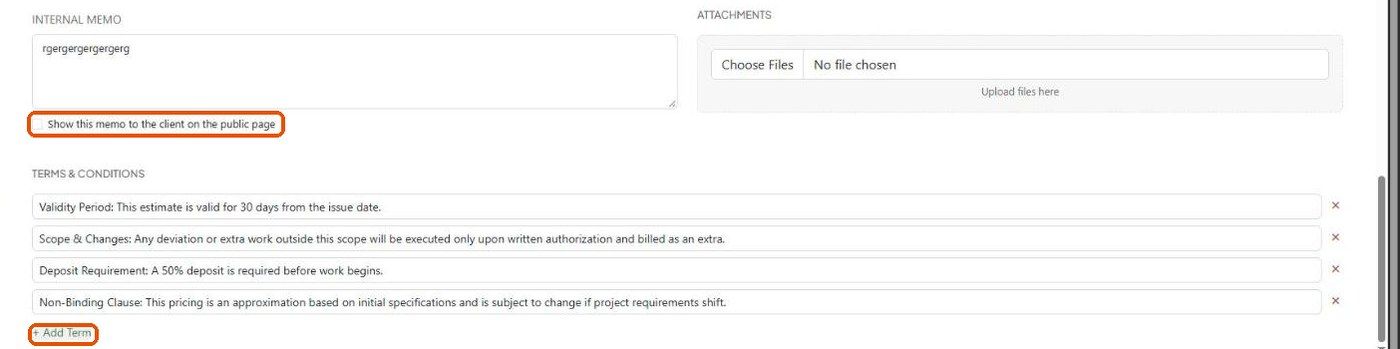
Internal memo is for your team. Tick Show this memo to the client on the public page only if you want them to see it. New estimates fill this from the default in Money → Numbering and wording.
Attachments — click Choose Files to upload supporting files.
Terms & Conditions — one term per line; + Add Term adds another, ✕ removes one. Defaults come from Money → Numbering and wording.
Summary bar
The bar at the bottom shows Time + Services, Product, Other Costs and the total. Show Details adds Freight, Discount, Taxable Subtotal, Tax, Markup, Margin and Total Company Costs. These figures are internal.
Important limitations
The internal memo is also printed on the PDF if Internal Memo is on in the PDF export panel — check it before downloading.
Related articles
Markup vs. margin: what's the difference?
How to customize and download the estimate PDF
Was this helpful?
Still need help? Ask the team