How the client reviews and approves an estimate
What the client experience looks like when they receive and approve an estimate.
Written By Julia M.
Overview
When you send an estimate, the client opens it in their browser. They review each item, approve or decline, and then sign. Everything they see is controlled by the estimate's Client View settings.
What the client sees
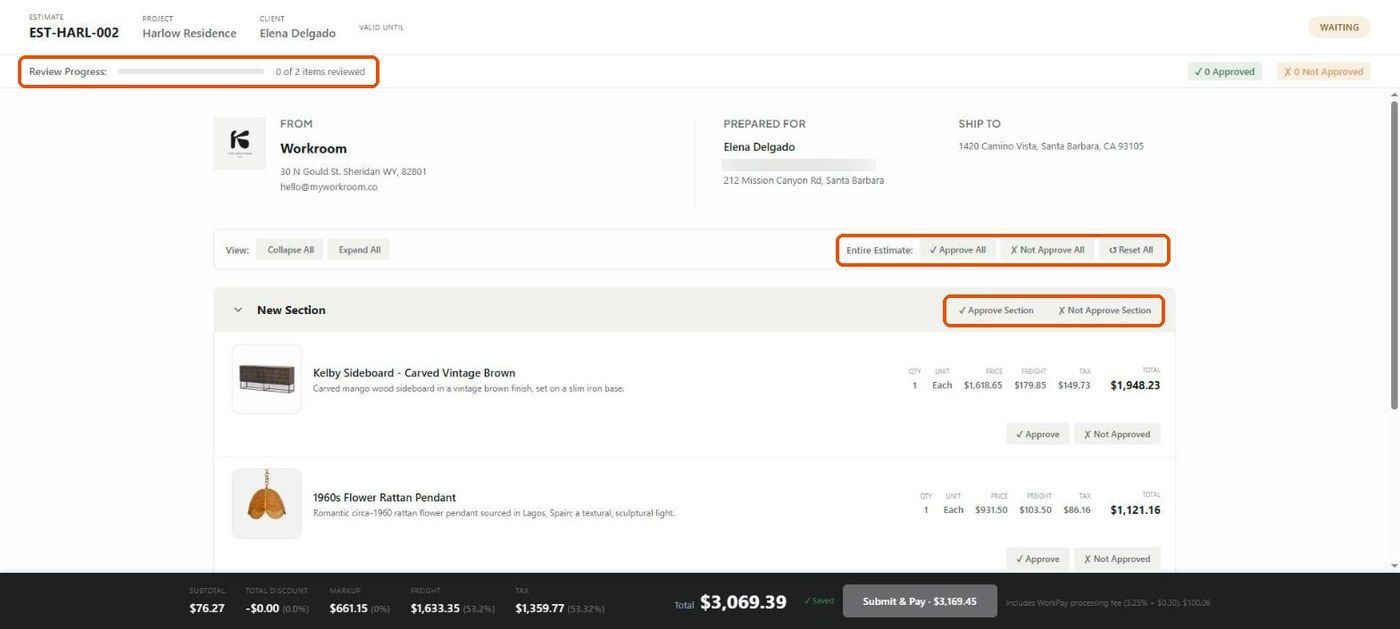
A header with the estimate number, project, client, Valid until date (if set) and status.
Review Progress — a bar and "x of y items reviewed", with Approved and Not Approved counters.
From, Prepared for and Ship to details.
Each section and item, with images, descriptions and the pricing columns you've allowed.
Your terms and conditions.
A bottom bar with subtotal, discount, markup, freight, tax, the total and Submit & Pay.
How the client approves
Per item: Approve or Not Approved under each line.
Per section: Approve Section / Not Approve Section in the section header.
Whole estimate: Approve All, Not Approve All or Reset All.
Collapse All / Expand All help on long estimates.
Which of these appear depends on the estimate's Approval mode (Item, Section, Whole estimate). Choices save as the client clicks (a Saved tick shows in the bar).

Approve All confirmation
Approve All opens a confirmation listing the items and total. The client must tick the box certifying they've reviewed details, specifications and pricing before Confirm & Approve All is enabled.

Signing
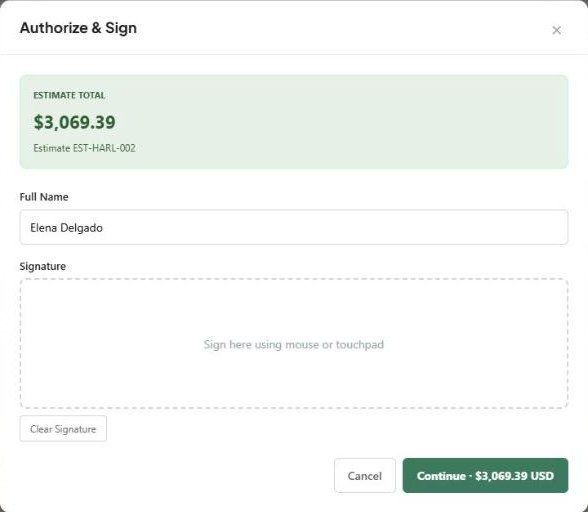
Submit & Pay opens Authorize & Sign. The client confirms their full name, draws a signature with a mouse or touchpad, and clicks Continue.
What happens next?
The estimate status updates (Approved, or Partial if some items were declined).
The Activity tab records the client's actions.
To let the client re-review, use More → Reset all selections on the quick view panel.
Important limitations
Check Markup / Margin in Client View before sending — if it's on, the client's bottom bar shows your markup.
Related articles
How to configure the client view on an estimate
How to send an estimate to a client
Taking payments on an estimate
Was this helpful?
Still need help? Ask the team