Estimates: An Overview
How the estimates module works and what you can do with it.
Written By Julia M.
Overview
Estimates present proposed products and services to a client for approval. Find them under Finances → Estimates, or on a project under Finances → Estimates.
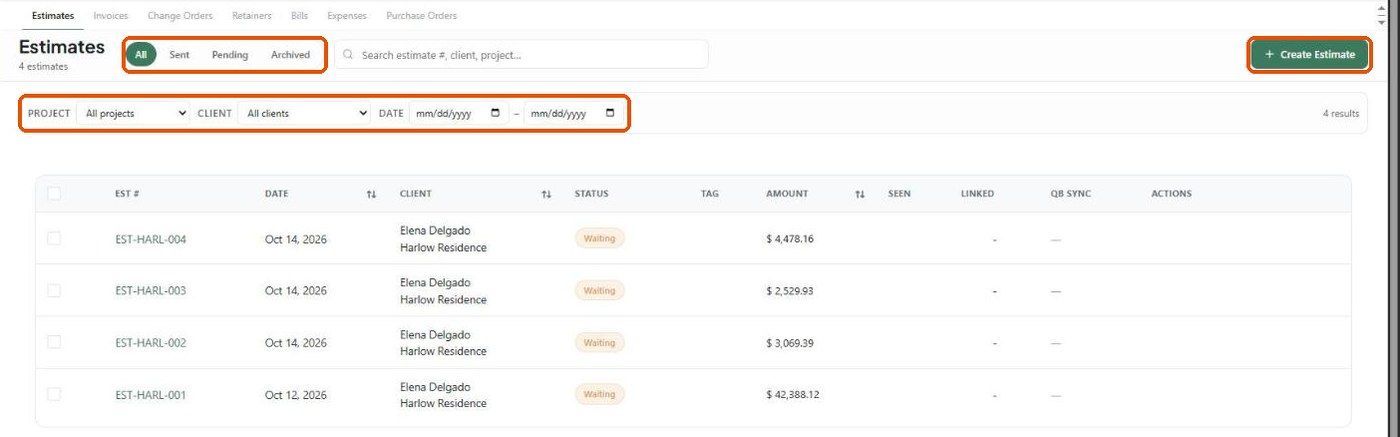
The estimates list
Status filters: All, Sent, Pending, Archived.
Search: by estimate number, client or project.
Filters: Project, Client and a date range.
Columns: EST #, Date, Client (with project), Status, Tag, Amount, Seen, Linked, QB Sync, Actions.
Statuses
Draft, Waiting, Sent, Approved, Partial, Declined, In Revision, Paid and Unpaid. You can set the status manually from the dropdown at the top right of the editor.
Row actions
Hover a row to see its icons:
Share — Client View, Copy client link, Download PDF, Send to Client.
Pencil — edit.
+ — more actions.
Archive and Delete.
Quick view panel
Click an estimate number to open it on the right.
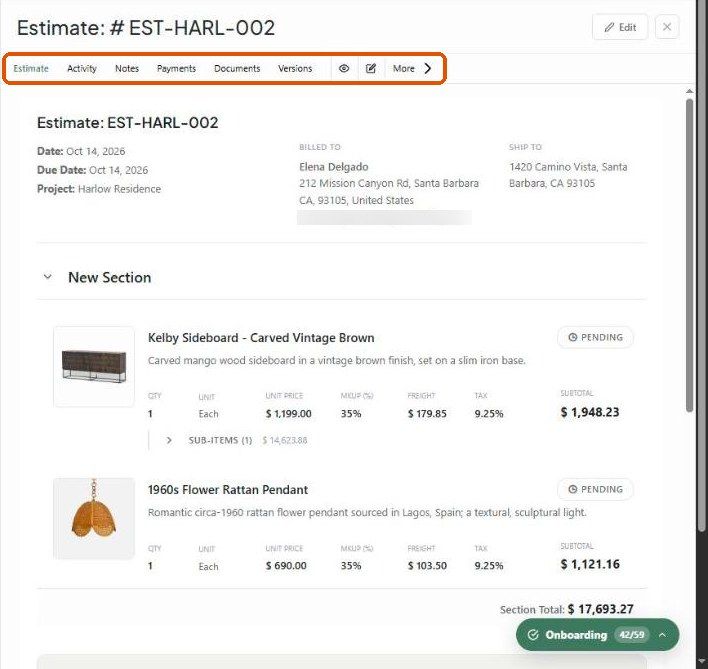
Estimate — items with images and approval status, totals, and an internal Cost Analysis (Product Total, Company Costs, Gross Profit, Margin).
Activity — who did what and when.
Notes — internal notes.
Payments — payments received; Record payment.
Documents — attached files.
Versions — each save keeps a snapshot of the previous state so you can compare and revert.
Eye icon (client view), pencil (edit) and More: Mark as sent, Reset all selections, Delete.
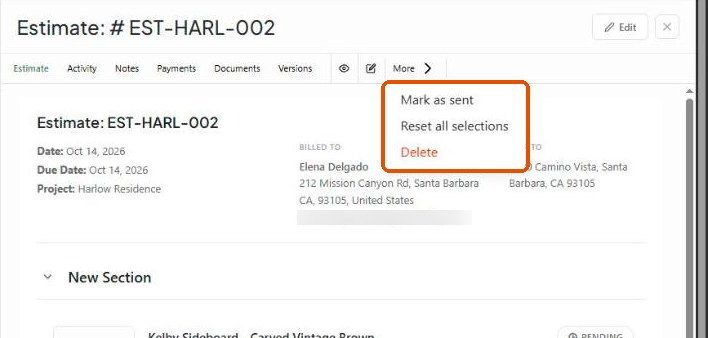
Reset all selections returns every item to Pending so the client can review again.
Create an estimate
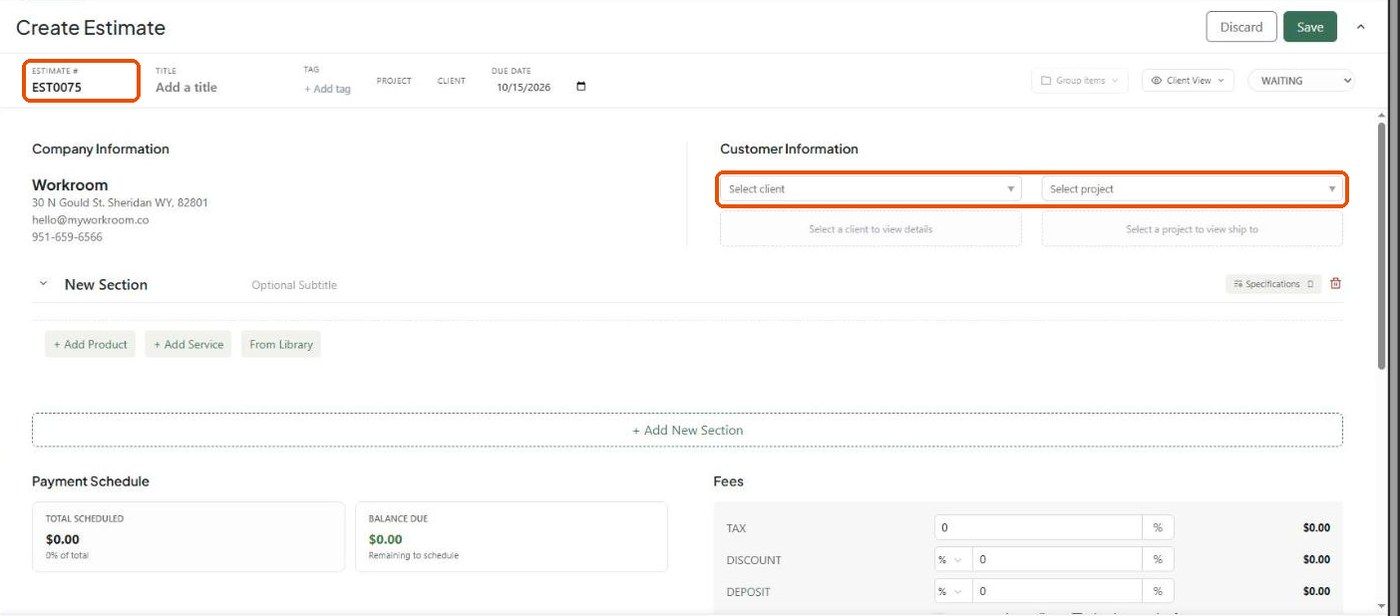
Click Create Estimate. The editor can take a few seconds to load.
Choose the client and project under Customer Information.
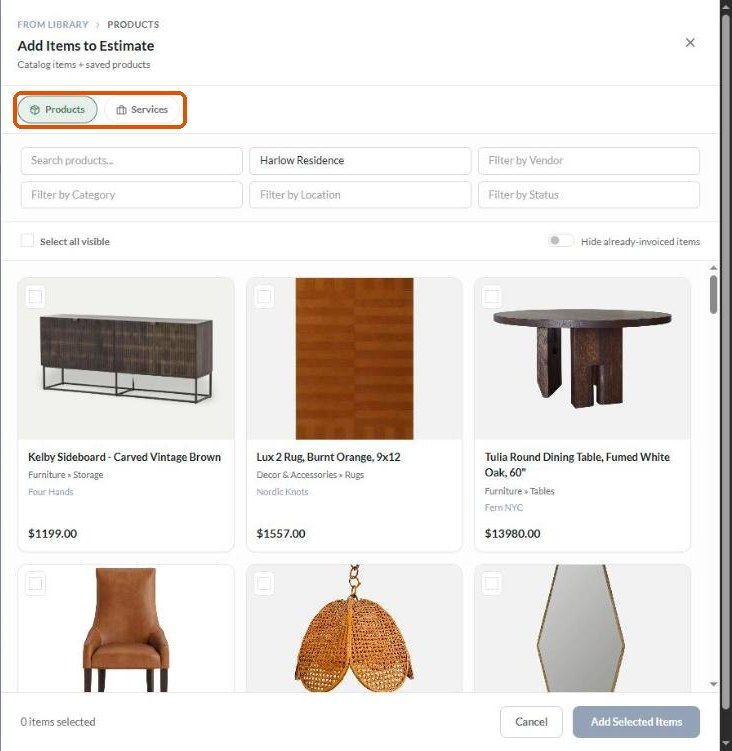
Add lines with + Add Product, + Add Service or From Library.
Click Save (or Discard).
From Library on an estimate offers Products and Services, with search and filters for project, vendor, category, location and status.
Related articles
How to send an estimate to a client
How to configure the client view on an estimate
Document numbering
Was this helpful?
Still need help? Ask the team